You open your browser, type www.divlens.in, and press Enter. Less than a second later, a fully rendered page appears on your screen.
That single second contains one of the most complex orchestrations in modern technology. Let's break it apart — every layer, every handshake, every byte.
This article covers the complete journey of an HTTP request: DNS resolution, TCP connections, TLS encryption, HTTP transactions, and browser rendering. Each step includes diagrams, code examples, and timing breakdowns.
The Network Stack — How Data Travels
Before we trace a request, you need to understand the layered architecture of networking. Every piece of data you send passes through these layers:

Each layer has a specific job:
| Layer | Protocol | What it does | Analogy |
|---|---|---|---|
| Application | HTTP, DNS | Formats the request | Writing a letter |
| Transport | TCP, UDP | Ensures delivery | Registered mail |
| Network | IP | Routes to destination | The postal system |
| Data Link | Ethernet, WiFi | Local delivery | The mail truck |
| Physical | Signals | Raw transmission | The road itself |
When something goes wrong with your internet, the problem exists at one of these layers. DivLens identifies which layer is failing — so you know whether it's a DNS issue (Application), a dropped connection (Transport), a routing problem (Network), or a WiFi issue (Data Link).
Step 1: DNS Resolution — Finding the Address
When you type www.divlens.in, your browser doesn't know where that is. It needs an IP address — a numerical address like 104.21.32.67.
This translation from name → IP is called DNS resolution, and it follows a specific chain:

Browser Cache Check
Your browser checks its own memory first. If you visited divlens.in recently, the IP is cached locally. This takes less than 1 millisecond.
OS Resolver Cache
If the browser cache misses, the operating system's DNS cache is checked. On macOS, this is managed by mDNSResponder. On Linux, it's systemd-resolved.
Recursive DNS Server
If the OS cache misses too, the request goes to your configured DNS server — usually your ISP's, or a public one like Google's 8.8.8.8 or Cloudflare's 1.1.1.1.
Root → TLD → Authoritative
The recursive server walks the DNS hierarchy: Root servers point to .in TLD servers, which point to divlens.in's authoritative nameserver, which returns the final IP address.
You can see this in action using the dig command:
# Trace the full DNS resolution path
dig +trace www.divlens.in

# Quick lookup showing just the result
dig www.divlens.in +short
# Output: 104.21.32.67
DNS Timing Breakdown
| Scenario | Time | Where |
|---|---|---|
| Browser cache hit | < 1ms | Local memory |
| OS cache hit | 1-5ms | Local system |
| Nearby DNS server | 10-30ms | ISP / Cloudflare |
| Full resolution (cold) | 50-200ms | Root → TLD → Auth |
| Slow/distant DNS | 200-500ms | International servers |
If your DNS server is slow, every new domain you visit gets delayed. Switching from your ISP's DNS to Cloudflare (1.1.1.1) or Google (8.8.8.8) can shave 50-100ms off every first visit. That adds up.
Step 2: TCP Connection — The Handshake
Now your browser knows the IP address. Before it can send any data, it needs to establish a reliable connection using TCP (Transmission Control Protocol).
TCP uses a three-way handshake:
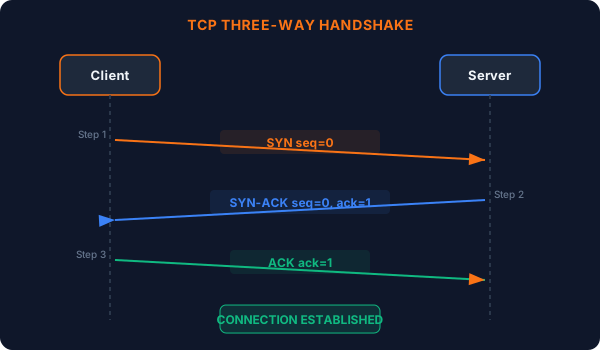
Here's what each step does:
- SYN — Client says: "I want to connect. My starting sequence number is 0."
- SYN-ACK — Server responds: "Got it. I'm ready too. My starting sequence number is 0, and I acknowledge yours."
- ACK — Client confirms: "Connection established. Let's talk."
This handshake takes one round-trip between client and server. If the server is 50ms away, the handshake takes ~50ms.
# You can measure this with curl:
curl -w "TCP connect: %{time_connect}s\n" -o /dev/null -s https://www.divlens.in

# Typical output:
# TCP connect: 0.045s
TCP guarantees that data arrives in order and without corruption. This is critical for web pages — you don't want half your HTML arriving out of order. For video streaming and gaming, UDP is often used instead because speed matters more than perfect delivery.
Step 3: TLS Encryption — Securing the Channel
Modern websites use HTTPS, which means a TLS (Transport Layer Security) handshake happens on top of the TCP connection. This is where encryption is negotiated.
The TLS handshake involves:
What the Certificate Proves
When the server sends its certificate, your browser verifies:
- Identity — Is this really
divlens.inand not an imposter? - Chain of trust — Was this certificate issued by a trusted Certificate Authority (CA)?
- Expiry — Is the certificate still valid?
- Revocation — Has the certificate been revoked?
If you see "Your connection is not private" in your browser, one of these checks failed. Never bypass this warning on sites where you enter personal information. It means either the certificate expired, the site is misconfigured, or someone is intercepting your connection.
The TLS handshake adds 40-150ms depending on whether it's a fresh connection or a resumed session (TLS 1.3 supports 0-RTT resumption, making repeat visits faster).
Step 4: HTTP Request — Asking for Content
With the encrypted tunnel established, your browser finally sends the actual request:
GET / HTTP/2
Host: www.divlens.in
User-Agent: Mozilla/5.0 (Macintosh; Intel Mac OS X 10_15_7)
Accept: text/html,application/xhtml+xml
Accept-Language: en-US,en;q=0.9
Accept-Encoding: gzip, br
Connection: keep-alive
Each header serves a purpose:
| Header | Purpose |
|---|---|
Host | Which website (servers can host many) |
User-Agent | Your browser and OS info |
Accept | What content types you can handle |
Accept-Encoding | Compression formats you support |
Connection: keep-alive | Reuse this connection for more requests |
The Server Responds
The server processes the request and sends back:
HTTP/2 200 OK
Content-Type: text/html; charset=utf-8
Content-Encoding: br
Cache-Control: public, max-age=3600
Content-Length: 42381

<!DOCTYPE html>
<html lang="en">
<head>
  <title>DivLens - System Understanding, Reimagined</title>
  ...
200 OK means everything went well. Other codes you might see:
- 301 — Permanently moved (redirect)
- 404 — Page not found
- 500 — Server error
- 304 — Not modified (use cached version)
Step 5: Browser Rendering — Pixels on Screen
This is where the magic happens. The browser receives raw HTML text and transforms it into a visual page:

The rendering pipeline has distinct phases:
5.1 Parse HTML → Build DOM
The browser reads HTML top-to-bottom and constructs the Document Object Model (DOM) — a tree structure representing every element:
<html>
  <head>
    <title>DivLens</title>
  </head>
  <body>
    <nav>
      <a href="/">Home</a>
    </nav>
    <main>
      <h1>System Understanding</h1>
      <p>Reimagined.</p>
    </main>
  </body>
</html>
Becomes this tree:
Document
├── html
│   ├── head
│   │   └── title → "DivLens"
│   └── body
│       ├── nav
│       │   └── a[href="/"] → "Home"
│       └── main
│           ├── h1 → "System Understanding"
│           └── p → "Reimagined."
5.2 Parse CSS → Build CSSOM
Simultaneously, the browser parses all CSS and builds the CSS Object Model. This determines how every element should look — colors, sizes, positions, fonts.
5.3 Layout → Paint → Composite
The browser combines the DOM and CSSOM into a render tree, calculates the position and size of every element (layout), draws them to layers (paint), and composites the final image (composite).
If a page loads a massive JavaScript bundle, the browser must parse and execute it before the page becomes interactive. The HTML may be visible, but buttons don't work until JS finishes. This is called Time to Interactive (TTI), and it's often the real bottleneck on modern web apps.
The Complete Timeline
Let's put it all together. Here's what happens in that ~500ms between pressing Enter and seeing the page:
   0ms   You press Enter
   1ms   Browser checks local DNS cache
   5ms   OS resolver cache miss
  25ms   DNS query sent to Cloudflare (1.1.1.1)
  45ms   DNS response: 104.21.32.67
  50ms   TCP SYN sent to server
  95ms   TCP handshake complete
 100ms   TLS ClientHello sent
 180ms   TLS handshake complete
 185ms   HTTP GET / sent
 190ms   Server receives request
 240ms   Server generates response
 280ms   First bytes arrive at browser
 300ms   HTML parsing begins
 350ms   CSS parsed, render tree built
 400ms   First paint — content visible
 500ms   JavaScript loaded, page interactive
400ms from Enter to visible content — that's the speed of the modern internet.
Here's the complete flow as a diagram:
What Can Go Wrong (And Where)
Understanding this pipeline helps you diagnose problems:
| Symptom | Likely Layer | What's Happening | Fix |
|---|---|---|---|
| "This site can't be reached" | DNS | Name resolution failed | Try different DNS (1.1.1.1) |
| Page loads extremely slowly | Transport / Network | High latency or packet loss | Check your network connection |
| "Connection not private" | TLS | Certificate issue | Check site's SSL config |
| Page loads but looks broken | Application | CSS/JS failed to load | Hard refresh (Ctrl+Shift+R) |
| Page loads but is unresponsive | Rendering | Heavy JavaScript blocking | Wait, or disable extensions |
How DivLens Sees This
When you ask DivLens "why is this website slow?", it doesn't just show you a number. It traces the entire pipeline and tells you:
"Loading
example.comtook 4.2 seconds. Here's why:
- DNS resolution: 320ms (your DNS server is slow — switching to Cloudflare would save ~250ms)
- TCP + TLS handshake: 180ms (normal for this server location)
- Server response: 2,800ms (the server is responding slowly — this is on their end)
- Rendering: 900ms (the page loads 4.2 MB of JavaScript — this is unusually heavy)
The main bottleneck is the server response time. This is not something you can fix from your end."
That's understanding, not just measurement.
Key Takeaways
- Every URL request involves 4-6 separate protocols working together across 5 network layers
- DNS resolution is often the first bottleneck — use fast DNS servers
- TCP + TLS add ~100-200ms of overhead before any content is transferred
- The browser rendering pipeline is just as complex as the network journey
- When things go wrong, knowing which layer failed is the key to fixing it
Open your browser's Developer Tools (F12), go to the Network tab, and reload any page. You'll see the timing breakdown for every single request — DNS, TCP, TLS, request, response, and rendering. It's the same pipeline we described here, measured in real time.
Further Reading
- How DNS Works — A Visual Guide — Beautiful interactive explanation
- High Performance Browser Networking — Free book by Ilya Grigorik
- MDN: How the Web Works — Mozilla's official guide
- What happens when you type google.com — Extremely detailed GitHub repo
Appendix: TCP Connection State Machine
For the technically curious, here's the full TCP state diagram showing how connections transition between states:
This state machine is why you sometimes see connections stuck in TIME_WAIT — they're waiting for any delayed packets to expire before fully closing.
This article demonstrates the full capability of the DivLens blog system: custom SVG diagrams, Mermaid UML diagrams (sequence, flowchart, state), interactive components, code blocks with syntax highlighting, comparison tables, callout boxes, step-by-step guides, badges, highlights, and more — all written in a single .mdx file.